
About this manual
This manual describes the administration interface of mmDial Pro. You reach it after signing in at login.mmdial.de, in the /mmdial/ area. Here you create campaigns, load address lists, manage agents, steer day-to-day operation and get the results back out again.
Who is this manual for?
For administrators and team leaders. Anybody making calls as an agent works in a different interface – the Manual for agents covers that.
If you use mmDial Basic, you work with a leaner administration. Much is identical, some things do not exist there. The mmDial Basic manual covers that.
A note on the interface language
mmDial is available in German, English, Spanish, French, Dutch and Turkish. The language belongs to the individual account, so you and your agents can each work in a different one. Many installations still run in German; the menu entries named here are therefore translations, but the position in the interface is the same in either case. The Manual for agents additionally gives the German wording for every button, because agents have to react to what is on the screen quickly.
How to read this manual
The chapters follow the order in which you usually need things: sign in and look around first, then create agents and campaigns, then load addresses, then make calls and report.
If you are working with mmDial for the first time, the best thing is to jump straight to the chapter Your first campaign in ten minutes in the appendix.
Supplementary manuals
Two areas have been split out of this manual because they are extensive and only some customers need them:
- Supplement – Inbound – incoming calls, call blending, voice menus, queues and voicemail
- Supplement – Workstations – managing agents and workstations separately
Feedback
Is something missing, or does a section not describe what you see on your screen? Write to us by email at service@mmdial.de or through the contact form at mmdial.de. Every edition of this manual carries a version number at the top right – please quote it in your feedback.
Not every account sees the same thing
Before you read on, an important point: mmDial does not look the same for all customers. If a menu entry described in this manual is missing for you, that is as a rule not a fault.
Four levels decide what you see
How to recognise it
Sections that are not available in every account are marked in this manual like so:
If something you need is missing, talk to us.
First steps
Signing in
Go to https://login.mmdial.de. You need:
- your user ID – a number, for example
1015 - your password
You received both by email after registering. After signing in you land on the home page of the administration.
The layout of the interface
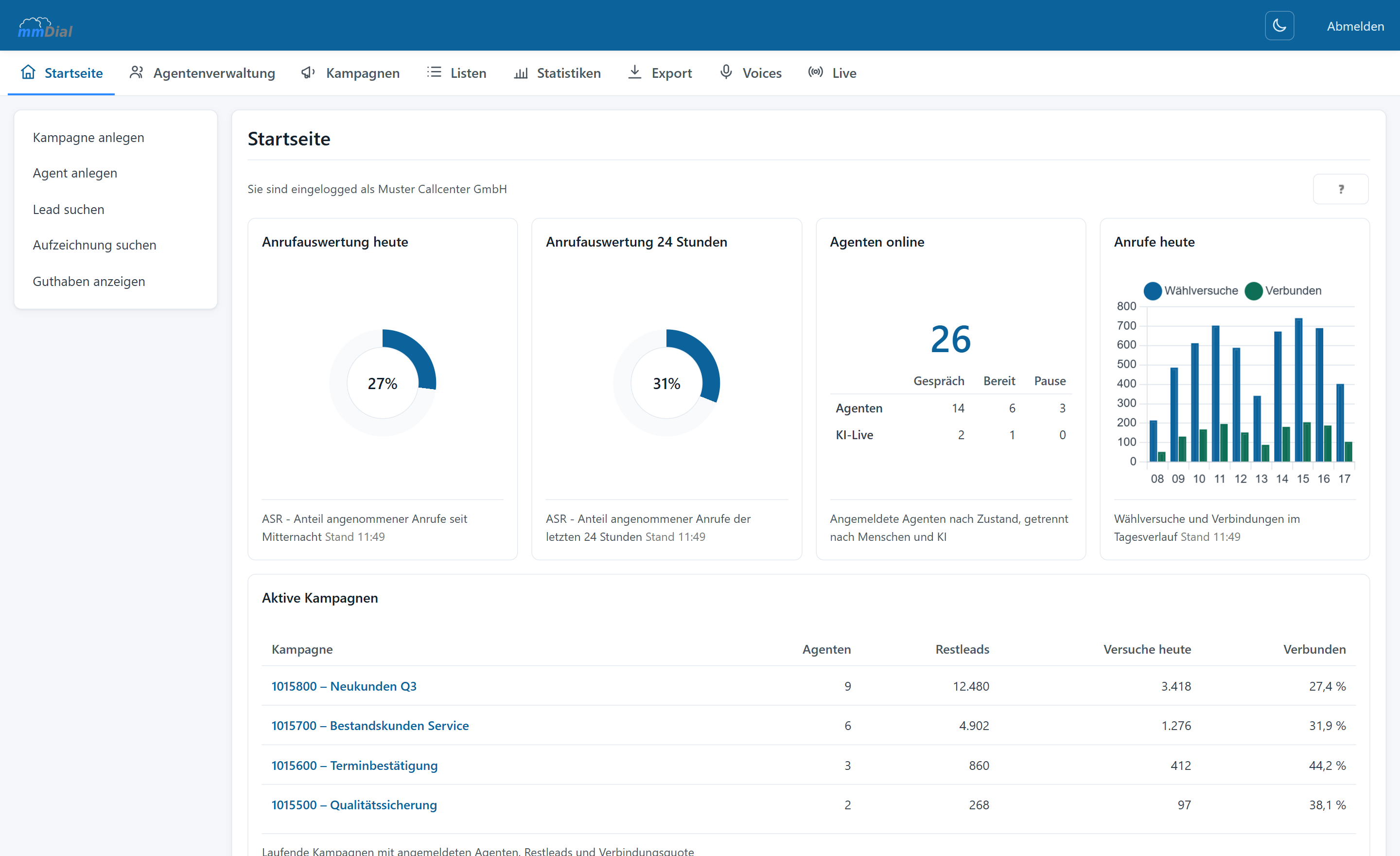
The interface always has the same structure:
- The blue bar at the top with the logo, the switch between light and dark design and the Sign out button.
- The main navigation below it: home page, agent management, campaigns, lists, statistics, export, Voices, Live.
- The submenu on the left, which changes depending on the area chosen. On the home page it holds the most common actions.
- The working area on the right.
On narrow screens the navigation and submenu open out via a button.
Light and dark design
The switch in the top bar changes between the light and the dark design. The choice is remembered in your browser and applies again the next time you visit.
What the home page shows
Using the link in each campaign row you jump straight into the campaign or into its live view.
Quick access
The home page submenu leads to the five most common tasks:
- Create a campaign
- Create an agent
- Search for a lead
- Search for a recording
- Show credit
Agents and groups
Before anybody can make calls, they need an agent account. You will find everything to do with that under Agent management.
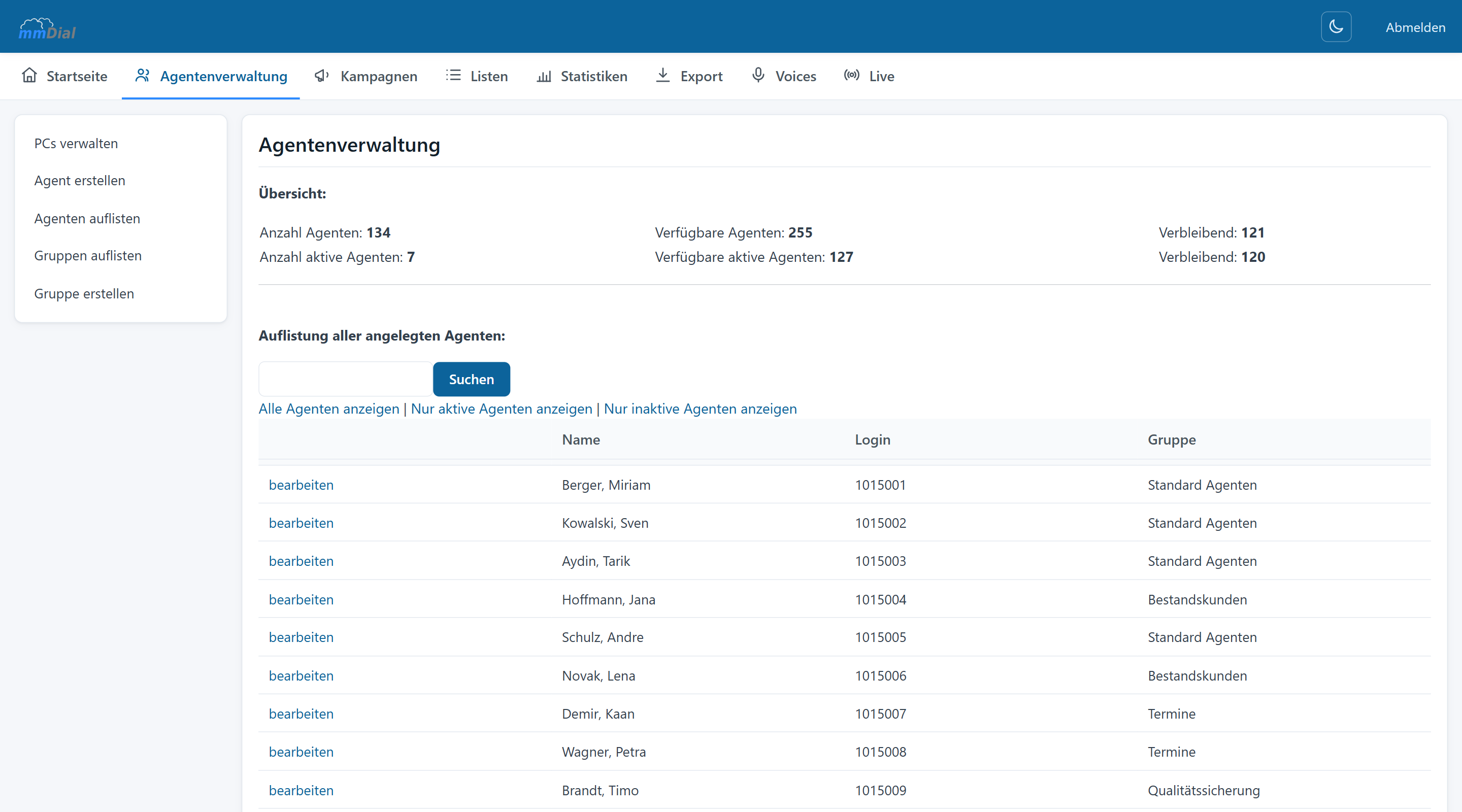
Understanding the overview
At the very top there are four numbers:
- Number of agents – how many accounts you have created in total
- Number of active agents – how many of those are set to active
- Available agents / available active agents – the quota you have booked
- Remaining – how many more you may create
Creating an agent
- Agent management → Create agent
- Enter the name and login details
- Set the state: active for everyone who is to make calls
- Assign a group
- Set the permissions (see below)
- Save
Permissions per agent
Groups
Groups bundle agents and their campaign permissions. Instead of telling each agent individually which campaigns they may see, you assign them to a group.
- List groups shows all groups with the campaigns assigned to them.
- Create group creates a new one; you then choose whether it may see all campaigns or only particular ones.
A typical structure:
- Standard agents – only the current outbound campaigns
- Existing customers – only the service campaigns
- Team leadership – all campaigns, plus group administrator
Workstations
In mmDial the telephony belongs to the agent: whoever signs in can work from any computer. In some older setups it is tied to the workstation instead.
Campaigns
The campaign is the central unit in mmDial. It brings together:
- one or more address lists
- the agents who work in it
- the dialling behaviour
- the call outcomes that agents can set
- the number displayed
- optionally an order form
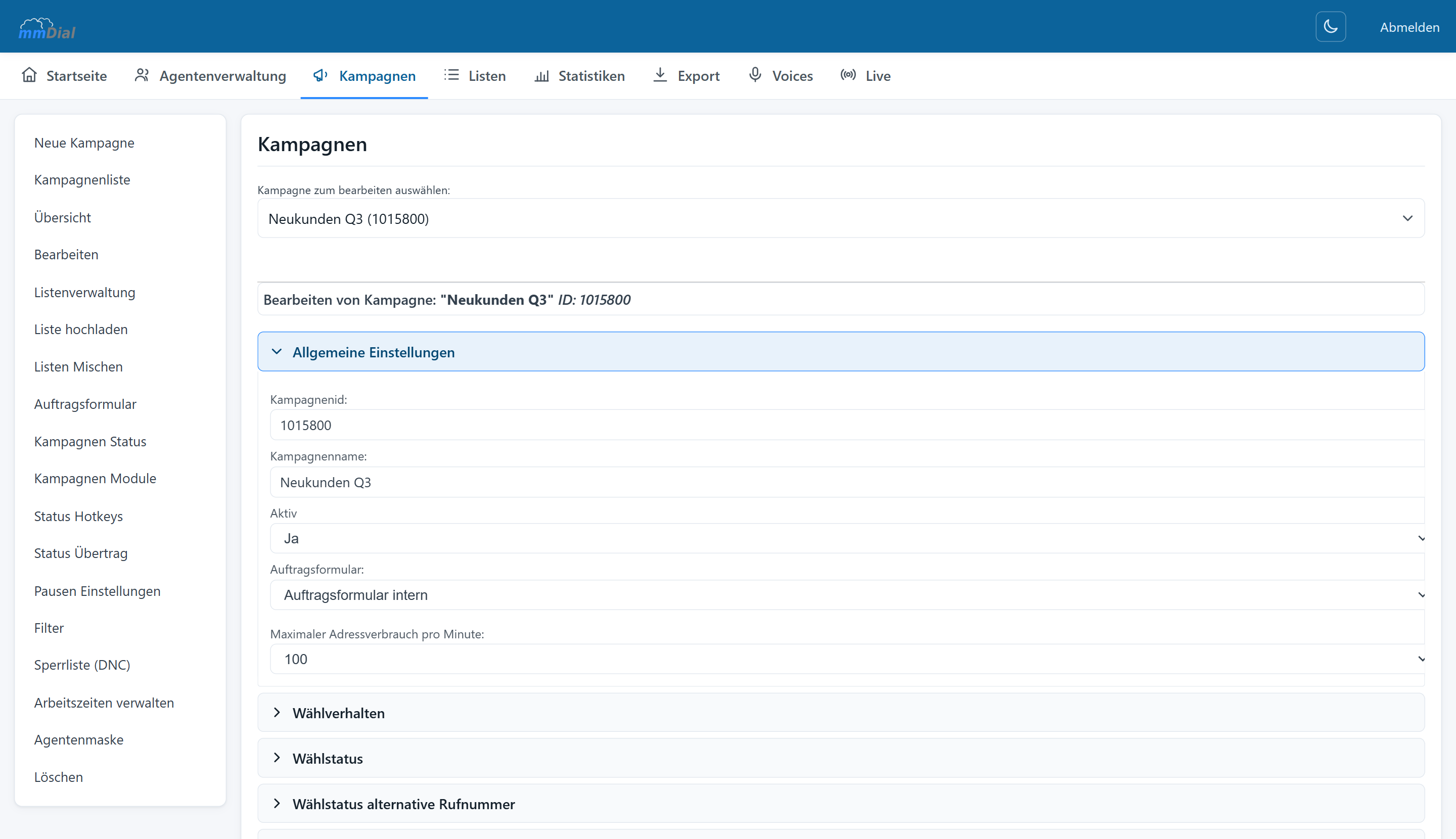
Creating a campaign
- Campaigns → New campaign
- Give it a name – choose something meaningful like
New customers Q3, notTest 4 - Save
- Then work through the settings (the following sections)
The campaign ID is assigned by the system. It appears in exports, statistics and file names – make a note of it when you discuss figures with clients.
General settings
The areas of the campaign settings
The settings page is divided into collapsible areas:
- General settings – see above
- Dialling behaviour – how and how fast dialling happens
- Call outcomes – which results agents can set
- Call outcomes for the alternative number – the same for a lead's second number
- Dialling rules – which outcomes are dialled again
- Further settings – recording, caller ID and special cases
The campaign submenu
Copying a campaign
Instead of rebuilding a similar campaign by hand, copy an existing one. The copy mode takes over the settings, the outcomes and the form assignment. The lists stay with the source campaign.
Dialling behaviour
This is where it is decided how productively your campaign runs – and whether you stay on the right side of the law.
The dialling mode
With predictive dialling you additionally choose the dialling level: either fixed (2.5 lines per agent, for example) or automatic.
The automatic levels
The abandon rate
An abandoned call arises when somebody picks up and no agent happens to be free. That annoys the people you call and is legally delicate.
- Maximum abandon rate – the limit that mmDial is to keep to. The dialler throttles itself before it reaches it. Whether you may change this value yourself, and in what steps, is set for your account.
- Drop call after (seconds) – the maximum time a person called waits.
- DROP action and DROP destination – what happens if a call is abandoned after all: hang up or play an announcement.
Redialling
- Redial after – the waiting time before a number that was not reached is tried again
- Maximum number of attempts – after which the lead rests
Time windows
Under Working hours (automatic dialling only) you define when dialling is permitted. There are ready-made templates (9 a.m.–5 p.m., noon–5 p.m., 5–9 p.m., 9 a.m.–9 p.m., 24 hours) and a freely adjustable window.
Caller ID (CLIP)
- CLIP number – which number appears at the other end
- CLIP numbers per area code (separately enabled) – store a list in the format
area code;CLIP number;description, and the number matching the destination area code is displayed - Agent CLIP – either always the campaign number or, if one is stored, the agent's number
Live-person detection
Recognises answering machines and recorded announcements and sorts them out before an agent is tied up. Without this function your agents regularly end up on mailboxes.
Further settings
Call outcomes, hotkeys and outcome forwarding
What call outcomes are for
At the end of every call the agent sets an outcome. Your reporting, your follow-ups and your exports all arise from that. mmDial comes with standard outcomes; you add to them per campaign.
Common standard codes:
Creating your own outcomes
Under Campaigns → Campaign outcomes you create your own outcomes. For each one you decide:
- Outcome counts as a sale – counts as a success in the reporting
- Outcome counts as not interested – counts as a refusal
- Outcome for callbacks – automatically creates a follow-up
- Outcome for the campaign blocklist – takes the lead out of dialling permanently
- Selectable by agents – some outcomes are set only by the system
Outcome hotkeys
Under Outcome hotkeys you define keyboard shortcuts. Agents then set the outcome with a keypress instead of a mouse click – at high throughput that saves noticeable time.
Outcome forwarding
Outcome forwarding moves or copies a lead automatically as soon as a particular outcome is set. The destinations:
- Export to campaign – for example all sales into a QA campaign
- Export to list – into a particular list
- Export to order form – into a different form
Additional possibilities:
- Copy all data and the history along with it
- Copy only the most recent history per lead
- Empty fields in the destination campaign
- Copy the order form along with it
Outcome forwarding can be activated and deactivated without deleting it.
Dialling rules
Under Dialling rules in the campaign settings you decide which call outcomes are dialled again. That is how you control whether somebody not reached comes up again or rests.
In addition there are automatic dialling rules for leads that were not reached: you store a filter rule, an age and a destination list. The system works through the rule on a schedule and moves the leads concerned.
Breaks and working hours
Break reasons
Under Campaigns → Break settings you define which break reasons an agent can choose – short break, lunch, training, technical problem, for instance.
For each break type a time limit can be stored. In the reporting you can see afterwards how much time went to which reason.
Settings can be copied from another campaign instead of being entered again.
Working hours
Under Manage working hours you store a standard time window (start and end) for each day of the week, along with daily options. That controls the automatic dialling.
Lists and leads
The three levels
- Campaign – the project
- List – a batch of records, usually one CSV delivery
- Lead – a single record
A campaign can have any number of lists. A lead always belongs to exactly one list.
Uploading a list
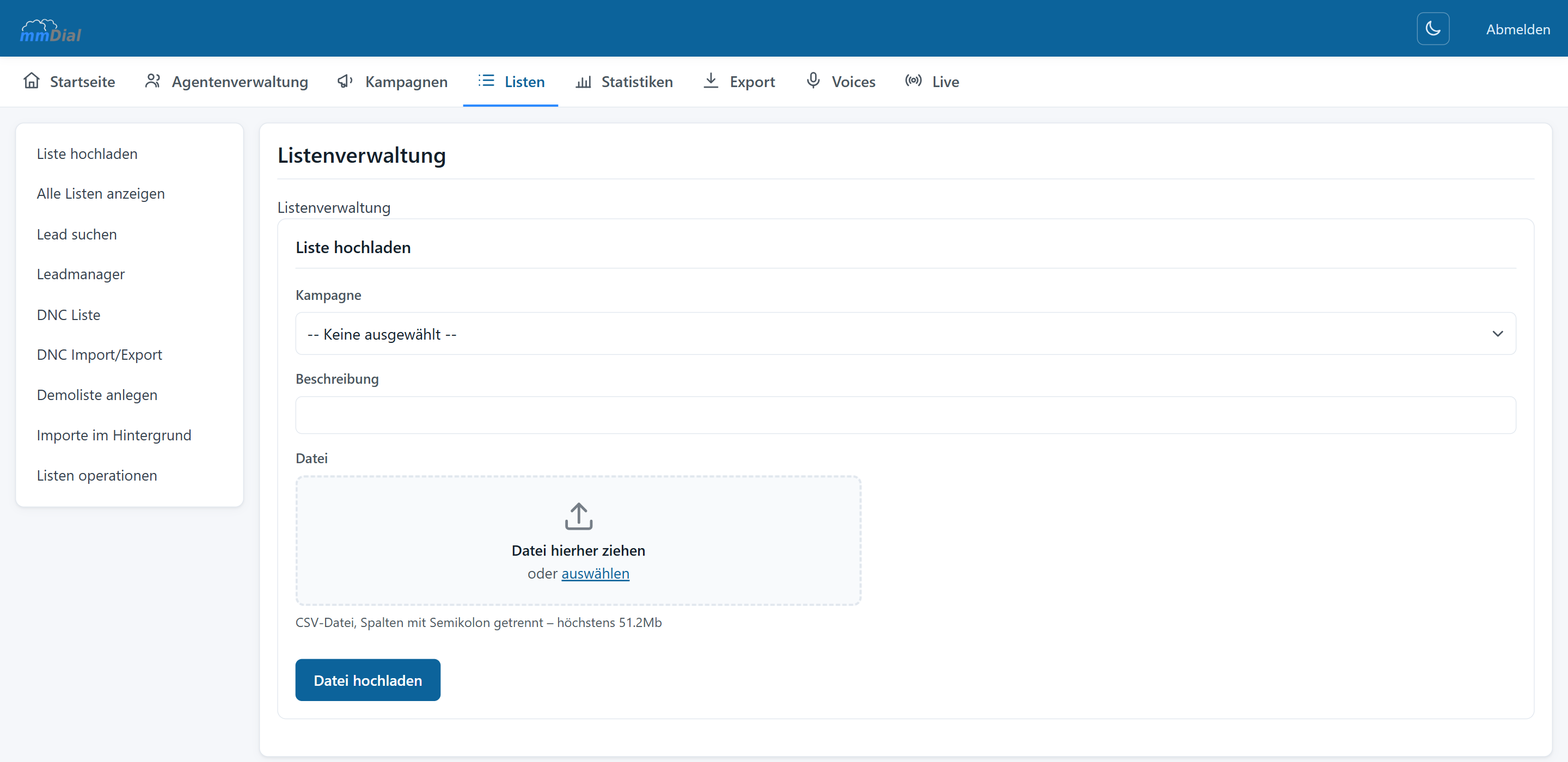
- Lists → Upload list
- Choose the campaign
- Enter a description – use the file name or the delivery week
- Drag the CSV file into the dashed field or find it via select
- Upload
The file has to be a CSV file with semicolons as the separator. The maximum file size is shown below the field.
Mapping fields
After uploading you see a preview of your data. On the right is the list of customer fields that mmDial knows about. Drag each field you need onto the matching column:
You only have to do the mapping once; after that you start the import.
Import settings
Large files
Very large imports run in the background. You can see the progress under Lists → Background imports.
List management
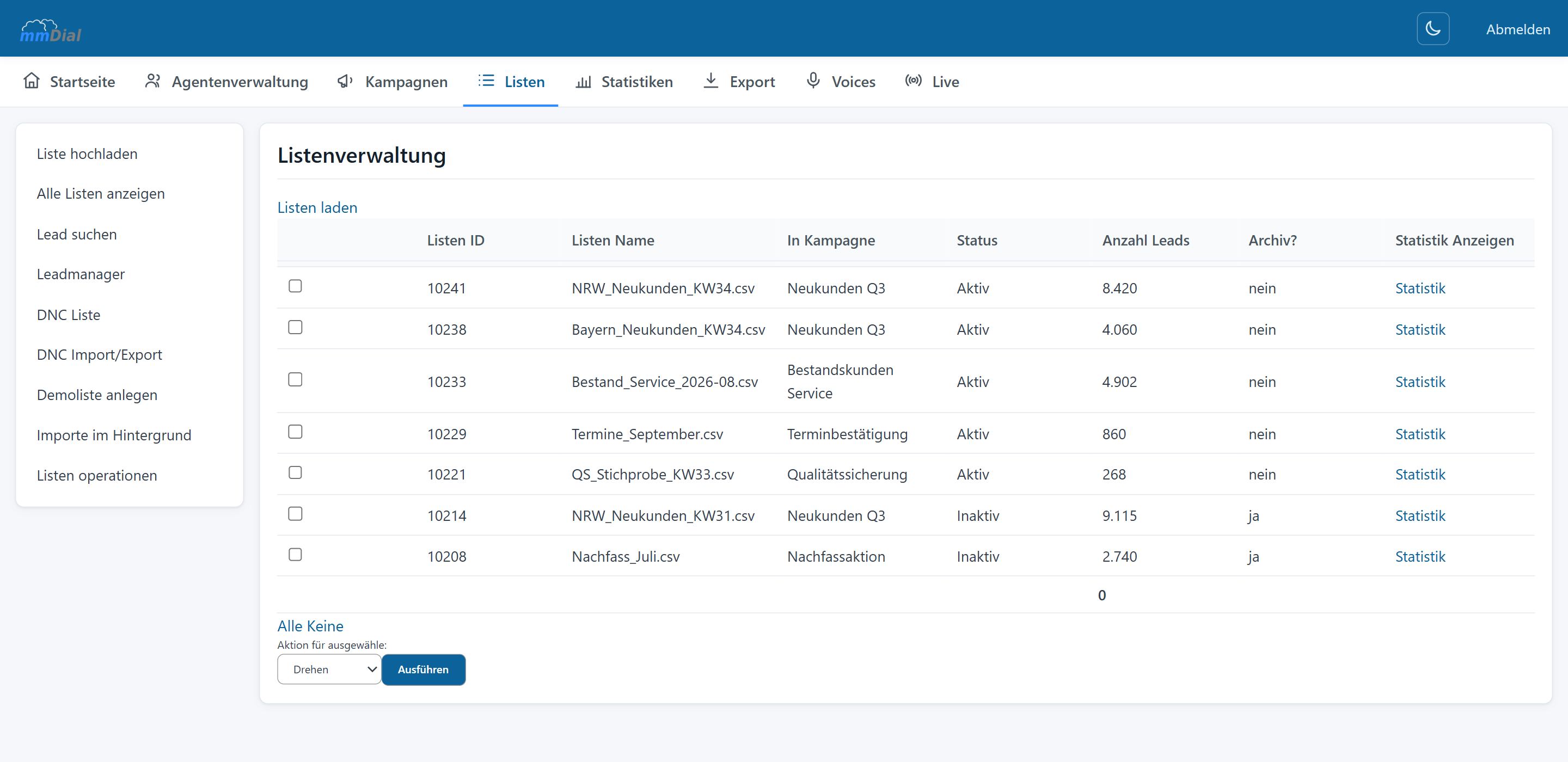
Under Lists → Show all lists your lists appear with their list ID, name, campaign, status, number of leads and archive marker.
Select one or more lists and choose an action at the bottom:
Rotating lists
When you rotate, all leads that do not have a final result get their starting outcome back again. The display Called since the last rotation helps you judge whether another pass is worth it.
Mixing lists
Under Mix lists you feed several lists in together:
- proportionally – one list after another in rotation (1, 2, 3, 1, 2, 3 …)
- at random
- stating how many leads are drawn from each list
That is useful when you are supposed to work through several batches evenly rather than burning through one first.
Finding a single lead
Lists → Search lead searches your stock by phone number, name or lead ID. In the result you can view, edit, move, copy, block or delete the record – and see the call history including follow-ups.
Filters and the lead manager
The filter builder
Under Campaigns → Filter you assemble the rules by which leads are fed in. That way you call deliberately instead of working through the whole stock from the beginning.
A filter rule consists of a field, a comparison and a value – for example postcode starts with 40 or date of birth before 1970. Several conditions can be combined.
Available for selection are, among others: salutation, first name and surname, street, postcode, town, country, date of birth, company name, status, list ID and your additional fields.
Saved filters appear in the campaign and can be switched on and off.
The lead manager
Lists → Lead manager is the tool for everything that has to happen to the raw data before it is allowed into a campaign.
It can enrich your stock – that is, add fields from a second source:
- by phone number
- by lead ID
- by external lead ID
- by any lead field
- via a lookup table
- from an order form using the lead ID
It can also:
- Split addresses – breaks
Beispielstrasse 6 12345 Ortinto the individual fields - Convert date formats – between
DD.MM.YYYY,YYYY-MM-DDand date with time - Filter files – read in CSV, text and spreadsheet files by drag & drop and download them again filtered
Blocklist (DNC)
Numbers that must no longer be called belong on the blocklist.
Two levels
- Campaign blocklist – applies to one campaign only. Found under Campaigns → Blocklist (DNC)
- Global blocklist – applies to your whole stock. Found under Lists → DNC list
Maintaining entries
- Add individual numbers by hand
- Load whole lists in or pull them out via DNC import/export
- Block all leads found by a search at once
- Show leads that are already blocked
- Empty the list
Agents can block a lead directly from the call. On import, blocked numbers are skipped.
Order form and agent screen
What is an order form for?
If your agents are to capture more than an outcome – orders, appointments, consultation records – they get an order form. It appears in the agent desk next to the customer data.
Internal or external
- internal – you build the screen in mmDial yourself
- external – you embed a form from your own system. mmDial hands over the call data, the processing stays with you
The form editor
Under Campaigns → Agent screen you assemble the screen.
Field types:
- Text field
- Dropdown
- Multiple choice
- Checkbox
- Date field
Fields from the customer record can be used directly: first name, surname, company name, street, house number, town, country, date of birth, lead ID, list ID, external lead ID.
Arrangement: the screen consists of cards, which can be added and removed. You move fields left, right, up and down and change their size. For extensive screens you create several pages.
Field permissions determine per agent or group whether a field is visible, writable or read-only.
Preview: before you release the screen, you see it as the agent will see it.
Letting the agent edit the lead
If it turns out during a call that the name is misspelt or the address is out of date, somebody used to have to put it right afterwards in lead management – or it stayed wrong.
Per campaign you release:
- which fields the agent may change
- whether the phone numbers are among them
- where the notification about the change goes
Enforced outcomes
You can specify that particular outcomes may only be set when the order form has been filled in completely. Otherwise the agent gets the message "Order form not filled in!".
Sending documents
Completed forms can be output as a print job or sent as an email with an attachment – personalised with the data from the form if you wish. You set the sender, recipient, subject and attachments for each document.
Inbound and call blending
With call blending your agents take incoming calls while working in an outbound campaign. Incoming calls take precedence over automatic dialling, and for known callers the agent immediately sees the customer data.
This includes inbound campaigns, queues with announcements and on-hold music, voice menus, voicemail and priority treatment for particular callers.
AI Agent Live
What the AI agent does
In an AI campaign the conversation is run not by a human but by an AI agent. The dialler dials as usual; when somebody picks up, the AI takes over, speaks with a natural voice and follows the guide you have stored.
If it detects an answering machine, it hangs up. If it detects interest, it forwards to one of your agents.
Setting up an AI campaign
- Create the campaign as usual
- In the campaign settings set AI campaign to Yes
- Choose AI Agent Live as the AI campaign type
- Set the prompts, voice and limits (see below)
The prompts
You write prompts in plain language, not in a programming language.
Voice and opening
- AI voice – several voices in different languages, female and male alike
- Conversation started by – customer speaks first or agent speaks first
- If the AI speaks first: a fixed first sentence or a prompt for the first sentence, a delay, and whether it can be interrupted
- If the customer speaks first: after what waiting time the AI starts by itself if nothing comes
A fixed announcement before the AI
You can have an audio file played before the AI takes over – a greeting, for instance, or the legally required notice. Store the address of the .mp3 and its length. Optionally you also supply the spoken text in writing, so that the AI knows it and does not greet the person twice.
Limits
In addition, the number of simultaneous AI lines is limited and is agreed per customer.
Forwarding to a human
You store:
- the prompt for the forwarding
- the destination number in the format
0049… - optionally the caller ID displayed when doing so. If the field stays empty, the number of the person called is used
The agent taking over sees the customer data in their screen immediately.
Answering-machine detection
Two detection methods:
- Detection during the AI conversation (the default) – only takes effect once the AI has taken over
- Detection directly at call setup – also works with a pre-announcement
You can use the built-in pattern list and additionally store:
- strong keywords that trigger on their own
- weak keywords with a threshold
- words that deliberately must not trigger – real people who must not be dropped
- a minimum length from which a text is checked
- the length of monologue as an additional indication
The AI in the live view and the statistics
AI agents are counted separately from humans. In the statistics, a call in an AI campaign only counts as successful if it was actually put through to the AI.
Notifications to other systems (webhooks)
Anyone keeping their leads in a system of their own used to have to ask what mmDial had made of them. With notifications, mmDial speaks up by itself.
The application calls them notifications; if you come from development, you know them as webhooks. They are the same thing: mmDial calls an address of yours as soon as something happens.
Creating a rule
You store rules per campaign. Each rule has a trigger and one or more destinations.
For each rule you additionally choose who triggers it: the agent, the administration or the API. That way a bulk change from lead management stays silent while every agent's result is reported.
Only for particular outcomes
Every rule has an outcome filter. Left empty, the rule applies to every outcome – as it did before. Enter outcomes and it fires only for those; on a change of outcome it is the new outcome that counts.
The destinations
- up to three addresses per rule, each one as an HTTP POST or as JSON
- optionally an email as well, for which you write a template of your own
What is sent along
Always included are the lead ID and the user field – who triggered the notification. It holds the agent's ID when an agent triggered it, admin for a customer account in the administration and api for the interface. For a change of outcome, the old and the new outcome come with it.
Which master-data fields go along is up to you to tick; the same fields are offered as in the export and in the form editor. One button ticks them all at once.
The email template
If the rule is to send an email as well, you write the template for it in the editor – with formatting, not as a bare text box. The templates sit with the document templates, so they can be reused.
The interface (API)
mmDial has an HTTP interface. With it your own system works directly with the data in mmDial, without anybody exporting something by hand and reading it back in.
What you can do with it
Together that is more than fifty actions. Which of them you need depends on your system – talk to us and we will name the right ones and the call format.
Signing in
Two ways are open: with a user name and password, or with a token sent as Authorization: Bearer <token>. The token is the better route: it does not belong to a person who may leave the company, and you can withdraw it on its own without changing a password that is used elsewhere too.
The authtest action lets you check that a sign-in works before you build the rest. It answers only on a valid sign-in and names the customer the token belongs to.
Managing and restricting tokens
For each token you can record which actions it may carry out – one per line. If the list stays empty, it may do everything. If something is in it, every other action is refused and reported to us.
Live monitoring
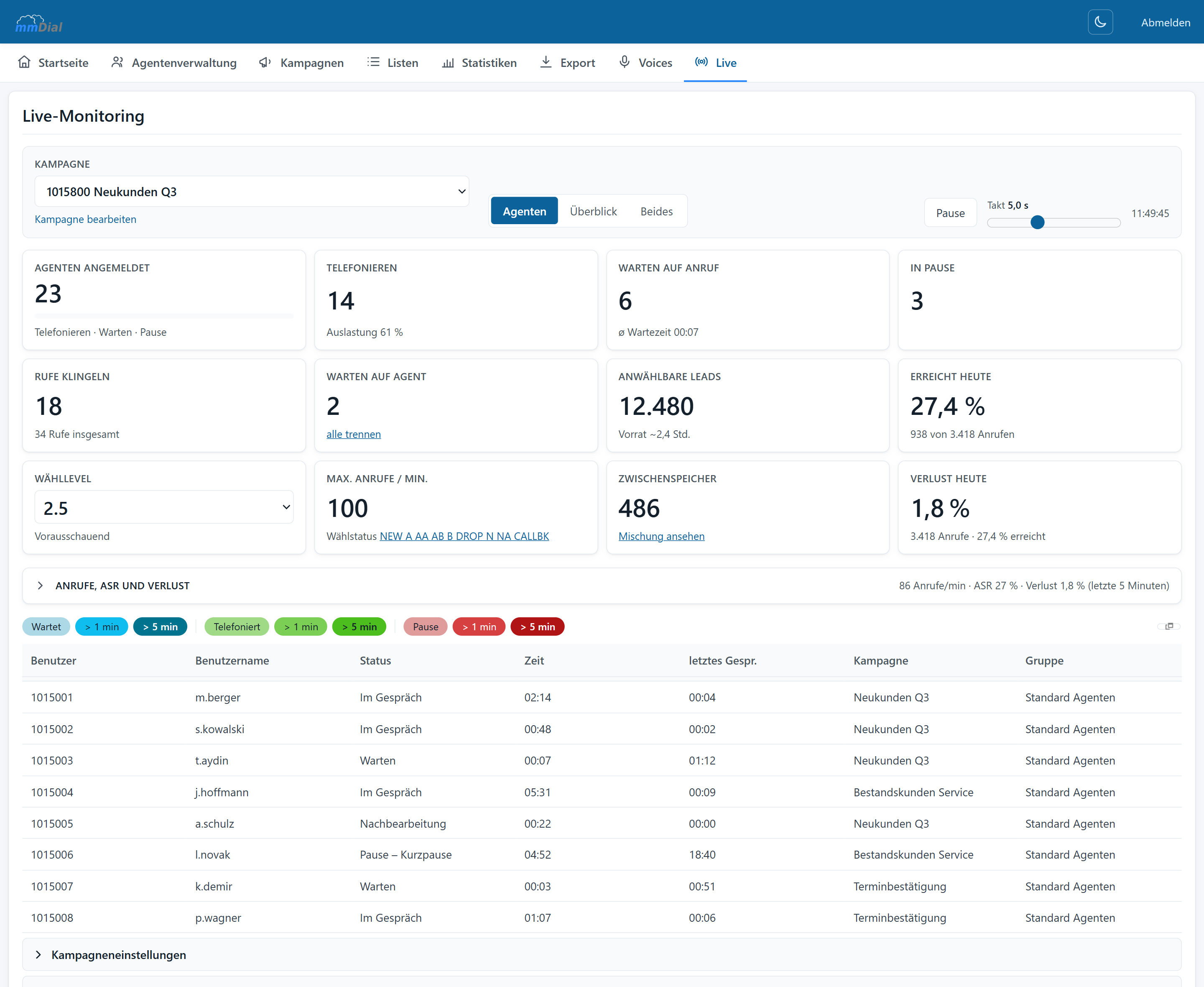
What you see here
Under Live you choose a campaign at the top – or All campaigns for the overall view. With the switches beside it you display Agents, Overview or Both. The slider on the right sets the refresh interval; Pause freezes the view.
The tiles
Intervening during operation
- Change the dialling level and the dialling mode – takes effect immediately
- Adjust which call outcomes are dialled again
- End waiting calls if something starts to pile up
- Empty the buffer – careful, refilling it takes up to two minutes
- Sign an agent out after their next call
- Lock or unlock a workstation
The agent table
For each agent you see the user, the user name, the state, how long it has lasted, when the last call was, the campaign and the group. The coloured switches above filter by state and duration – break > 5 min, for instance, to find outliers.
Listening in
Through the live view, team leaders can listen in on a running call.
Statistics
Under Statistics you report on what has happened.
The agent comparison
Choose a comparison figure, a period and the agents, campaigns and groups to include.
Available comparison figures:
- SALEs
- Number of calls
- Call duration, total and average
- Waiting time, total and average
- Break time, total and average
- Break time by reason
- Outcome time, total and average
- Average call time – including campaigns without agents, that is AI campaigns
- Per outcome
- Working hours (login times)
Campaign and list statistics
From the campaign overview and from list management you call up the outcome distribution: how many leads were reached, not reached, ended up on an answering machine or were completed. That is the basis for judging the quality of your data.
Trends over time
Calls and ASR can be displayed over time – at resolutions from five minutes to 24 hours.
Daily figures per campaign
A campaign's key figures – calls, agents, peak values – always apply to now. At the change of day they are reset; anyone who wanted to look up the next morning how yesterday went found nothing left.
mmDial therefore saves those values every night, before the change of day deletes them. In the statistics you find them as daily figures and can view several days side by side.
Calls by hour
Beside the daily figures sits the hourly report: all twenty-four hours of a day one below the other, with the calls per hour, how many of them connected and at what rate, who held the conversation – agent or AI – the abandons, the call time and the average per call, plus manual and incoming calls. Above it a bar chart and the busiest hour.
It answers the questions that daily figures cannot: whether the early afternoon is worth it, whether the answer rate really collapses after 5 p.m., and whether yesterday ran differently from today.
Connected here means: the call had a call duration. That is read from the data rather than from a list of outcomes – for AI campaigns such a list would be a different one anyway.
Print view
The Print view button produces a tidy version without the navigation that prints cleanly or can be saved as a PDF.
Recordings
Switching recording on
Whether recording takes place is set per campaign:
- permanently – every call is recorded
- controlled by the agent – the agent starts and stops it themselves
You can additionally set whether only the agent channel is recorded and whether the recording starts with a delay.
Finding recordings
Under Voices you search the recordings:
- Quick search by file name or phone number
- Advanced search by campaign, period, length and further characteristics
- From a hit you jump to the associated lead
Determining the file names yourself
Under Schemes you define what recordings are called. The building blocks available include first name, surname, phone number, lead ID, external lead ID, campaign, list, date, time and agent ID.
A scheme can be saved and reused for further campaigns. If a client changes their requirements, you adjust the scheme instead of renaming files.
Downloading
- Download all pulls the hits as a package
- Download result file delivers the list of hits as a file
- A filter can be applied to the result file
Export
Creating an export
- Export → Exports
- Choose the campaign
- Drag the fields you want from the customer data fields, order form fields and other areas over to Selected fields
- Set the order by moving them
- Set the period and filters
- Start the export and download the file
Export templates
Once you have assembled a format, save it as an export template. Next time you load it and start straight away. You edit templates under Export → Edit export templates.
Useful additional fields
Besides the master data, the following are available among others: import time, last edit, last call, call outcome, agent ID and the fields of your order form.
Encoding
Choose the encoding to match the target system – ISO-8859-1, Windows-1252 or UTF-8. When in doubt, ask your client; that saves returns because of mangled accented characters.
Supplying recordings with the export
Using load associated voice files you get the matching recordings alongside the records exported.
Connection data
Under Export → Connection data you pull the technical connection data – useful for billing and for records.
Media, account and support
The media system
Under Media you manage audio files: announcements, on-hold music, mailbox announcements and voices for AI campaigns. You upload files and then refer to them from the campaign or inbound settings.
Credit and invoices
- Show credit – the current balance of your prepaid credit
- Invoices – your invoices, available for download
If the credit runs low, the system speaks up before a running campaign comes to a halt.
The admin log
The admin log records changes in the administration – who changed what and when. With several administrators it is the quickest answer to "who changed that?".
Support
You reach our support through the ticket form in the interface or through mmdial.de/kontakt.php or by email at service@mmdial.de. By phone: +49 241 927 89 88 0, Monday to Friday, 9 a.m. to 4 p.m.
You will find the system status and fault reports at status.mmdial.de.
Appendix
Your first campaign in ten minutes
- Create an agent – Agent management → Create agent
- Create a campaign – Campaigns → New campaign, give it a name
- Set the dialling behaviour – to begin with: dialling mode Manual, with a suitable time window
- Upload a list – Lists → Upload list, choose the campaign, drop the CSV, map the fields, start the import
- Activate the list – Lists → Show all lists, set the list to Active
- Activate the campaign – in the campaign settings, set Active to Yes
- Have an agent sign in and make a test call
- Open the live view and watch
Once that works, switch the dialling mode to Predictive and keep an eye on the abandon rate and the ASR.
Common pitfalls
Terms
Further documents
Supplementary manuals for the areas split out:
- Supplement – Inbound – incoming calls, call blending, voice menus, queues and voicemail
- Supplement – Workstations – managing agents and workstations separately
Further manuals:
- Manual for agents – the interface your agents use
- mmDial Basic manual – the lean administration of the entry plan