
About this manual
This manual describes the administration of mmDial Basic – the entry plan without a base fee. You sign in at logindialer.direkt.mmdial.de.
mmDial Basic contains the complete predictive dialler. You create campaigns, load address lists, manage agents, steer operation live and report on it. The administration is deliberately leaner than that of mmDial Pro; which functions are additionally available there is set out in the chapter What mmDial Pro can do in addition.
Who is this manual for?
For everyone who administers mmDial Basic. Anybody making calls as an agent works in a different interface – the Manual for agents covers that.
A note on the interface language
mmDial is available in German, English, Spanish, French, Dutch and Turkish. The language belongs to the individual account, so you and your agents can each work in a different one. Many installations still run in German; the menu entries named here are therefore translations, but the position in the interface is the same in either case. The Manual for agents additionally gives the German wording for every button, because agents have to react to what is on the screen quickly.
Supplementary manual
One area has been split out because only some customers need it:
- Supplement – Workstations – managing agents and workstations separately
Not every account sees the same thing
One important point up front: mmDial does not look the same for all customers. If a menu entry described here is missing for you, that is as a rule not a fault.
Three levels decide what you see
Sections that are not available in every account are marked like so:
If something you need is missing, talk to us.
First steps
Signing in
Go to https://logindialer.direkt.mmdial.de and sign in with your user name and password. You received both by email after registering.
The layout of the interface
- The blue bar at the top with the logo, the switch between light and dark design and Sign out (Abmelden)
- The main navigation below it: home page, agent management, campaigns, lists, statistics, export, Voices, Live
- The submenu on the left, matching the area chosen
- The working area on the right
What the home page shows
The home page submenu leads to the most common tasks: create a campaign, create an agent, search for a lead, search for a recording, show credit.
Agents
Before anybody can make calls, they need an agent account. Everything to do with that is under Agent management (Agentenverwaltung).
The overview
At the top you find the number of agents created and active, plus your available quota.
Creating an agent
- Agent management → Create agent
- Enter the name and login details
- Set the state to active
- Grant permissions
- Save
Permissions per agent
An agent's follow-ups
Under Agent's callbacks (Callbacks des Agenten) you see which callbacks a particular agent has arranged and can move them if needed.
Workstations
In mmDial the telephony belongs to the agent: whoever signs in can work from any computer. In some older setups it is tied to the workstation instead.
Campaigns
The campaign brings together address lists, agents, dialling behaviour, call outcomes and the number displayed.
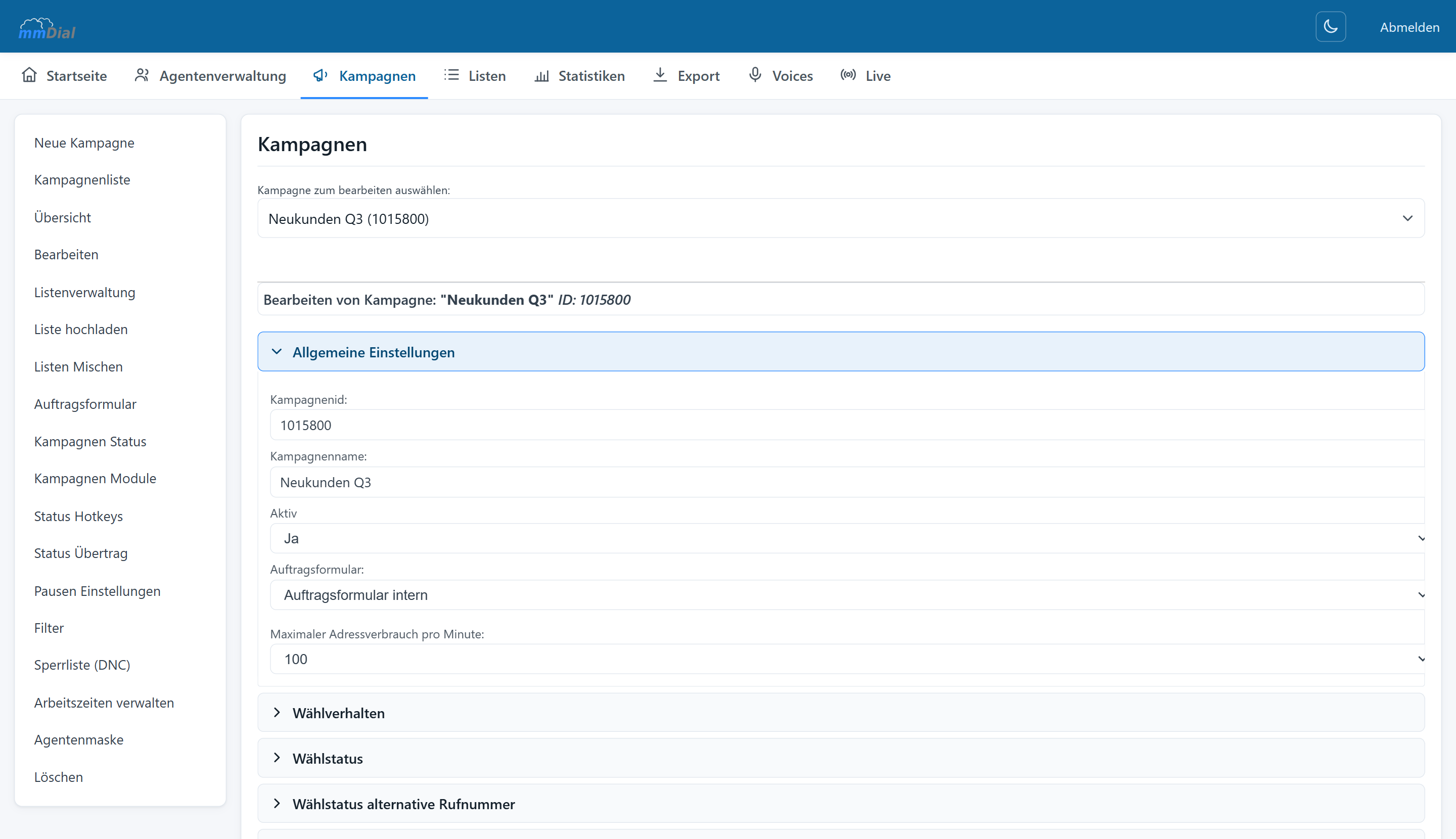
Creating a campaign
- Campaigns → New campaign
- Give it a meaningful name
- Save
- Work through the settings
The campaign ID is assigned by the system and appears in exports, statistics and file names.
The campaign submenu
General settings
The areas of the settings page
- General settings
- Dialling behaviour
- Call outcomes
- Further settings
Dialling behaviour
The dialling mode
With predictive dialling you set the dialling level – fixed or automatic.
The automatic levels
The abandon rate
An abandoned call arises when somebody picks up and no agent is free.
- Maximum abandon rate – the limit that mmDial keeps to
- Drop call after (seconds) – how long the person called waits
Redialling and time windows
- Redial after – the waiting time before the next attempt
- Maximum number of attempts – after which the lead rests
- Working hours (automatic dialling only) – when dialling is permitted. Ready-made templates and a freely adjustable window are available
Caller ID and detection
- CLIP number – which number appears at the other end
- Live-person detection – recognises answering machines and sorts them out
- On-hold music – what the person called hears until the agent takes over
Call outcomes
At the end of every call the agent sets an outcome. The reporting, the follow-ups and the export all arise from it.
Common standard codes:
In the Call outcomes area of the campaign settings you decide which outcomes are in circulation and which are dialled again.
Lists and leads
The three levels
- Campaign – the project
- List – a batch of records, usually one CSV delivery
- Lead – a single record
Uploading a list
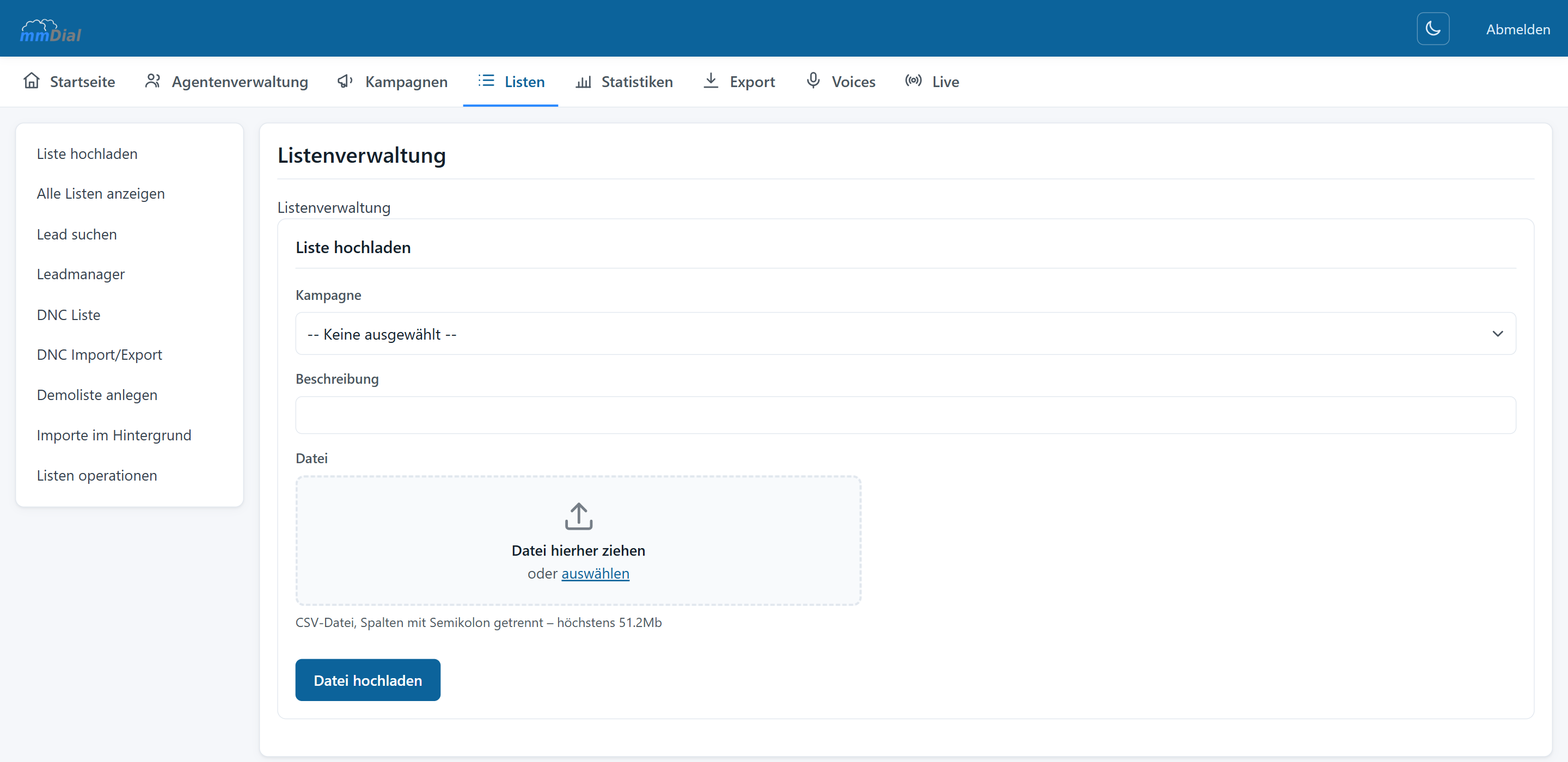
- Lists → Upload list
- Choose the campaign
- Enter a description – ideally the file name or the delivery week
- Drag the CSV file into the dashed field or select it
- Upload
The file has to be a CSV file with semicolons as the separator. The maximum size is stated below the field.
Mapping fields
After uploading you see a preview. Drag the customer fields from the list on the right onto the matching columns:
Import settings
Managing lists
You will find a campaign's lists in the campaign overview. There you have each list's name, status and lead count, and you can:
Finding a single lead
Lists → Search lead searches your stock by phone number, name or lead ID. In the result you see the record together with its call history and can edit, move, block or delete it.
Blocklist (DNC)
Numbers that must no longer be called belong on the blocklist. In mmDial Basic you maintain it per campaign under Campaigns → Blocklist (DNC).
- Add individual numbers
- Show leads that are already blocked
- Remove entries
Agents can block a lead directly from the call. On import, blocked numbers are skipped.
Live monitoring
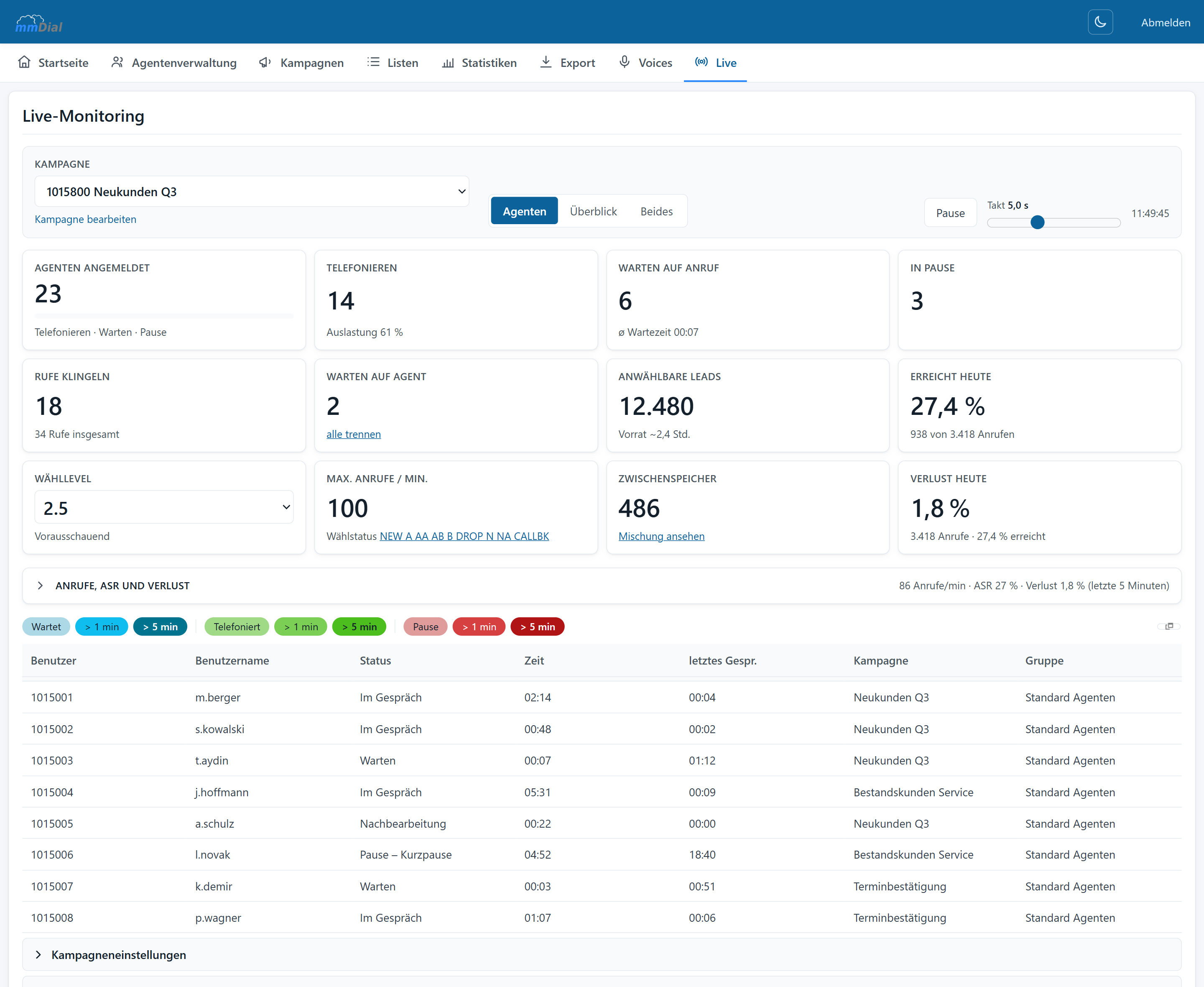
What you see here
Under Live you choose the campaign at the top. The slider on the right sets the refresh interval; Pause freezes the view.
Intervening during operation
- Change the dialling level and the dialling mode – takes effect immediately
- Adjust which call outcomes are dialled again
- End waiting calls if something starts to pile up
- View and empty the buffer
The agent table
For each agent you see the user, the state, how long the state has lasted, the last call and the campaign. The switches above filter by state and duration.
Statistics
Under Statistics the following are available to you:
- Agents – a comparison of individual agents over a period
- Agent overview – the overall picture of your team
Choose a comparison figure, a period and the agents and campaigns to include. You call up the outcome distribution of a campaign or list from the campaign overview.
Recordings
Switching recording on
Whether recording takes place is set per campaign – permanently or controlled by the agent. If the agent starts and stops it themselves, they are shown clearly during the recording that recording is in progress.
Finding recordings
Under Voices:
- Daily overview – what was recorded today
- Search recording – search by file name, phone number, campaign and period
- Answering machine – only appears when a mailbox is set up for your account
Hits can be listened to and downloaded as a package.
Export
Under Export you choose the campaign and assemble the export: select fields, set the order, set the period and filters, download the file.
Watch the encoding – ISO-8859-1, Windows-1252 or UTF-8, to match your client's target system.
Individual lists can additionally be exported straight from the campaign overview.
Credit, invoices and support
Credit
In mmDial Basic, telephony runs on prepaid credit. Under Show credit you see the balance, under Top up credit the bank details for topping up.
If the credit runs low, the system speaks up before a running campaign comes to a halt.
Billing documents
You will find your invoices and records under Billing documents.
Support
You reach our support through the ticket form in the interface or through mmdial.de/kontakt.php or by email at service@mmdial.de. By phone: +49 241 927 89 88 0, Monday to Friday, 9 a.m. to 4 p.m.
System status and fault reports: status.mmdial.de.
What mmDial Pro can do in addition
mmDial Basic and mmDial Pro use the same dialler core and the same telephony. The difference lies in the scope of the administration. These functions come with mmDial Pro:
Switching is possible at any time, without losing campaigns, lists or reports. Talk to us.
Appendix
Your first campaign in ten minutes
- Create an agent – Agent management → Create agent
- Create a campaign – Campaigns → New campaign
- Set the dialling behaviour – to begin with, dialling mode Manual, with a suitable time window
- Upload a list – Lists → Upload list, choose the campaign, drop the CSV, map the fields, start the import
- Activate the list – in the campaign overview
- Activate the campaign – in the settings, set Active to Yes
- Have an agent sign in and make a test call
- Open the live view and watch
Once that works, switch to Predictive and keep an eye on the abandon rate and the ASR.
Common pitfalls
Terms
Further documents
- Supplement – Workstations – managing agents and workstations separately
- Manual for agents – the interface your agents use
- mmDial Pro manual – the full range of features